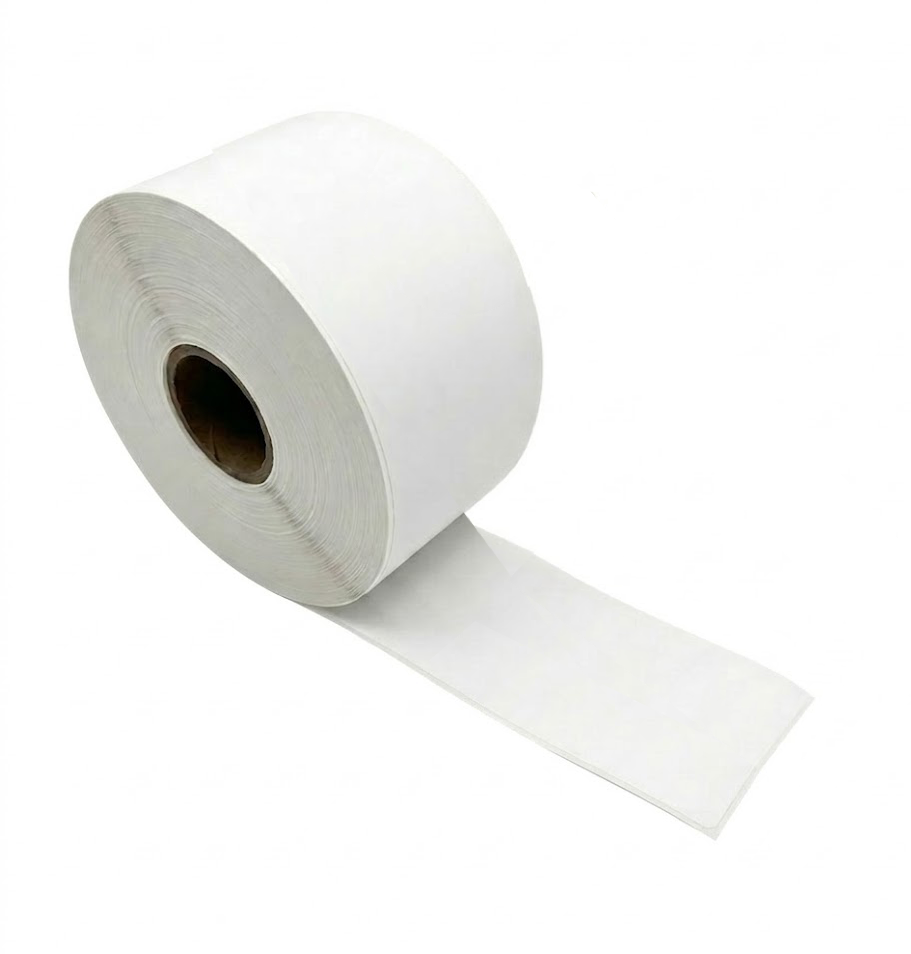


Linerless label printers (such as the Star Micronics TSP143IV SK) are game changers for busy kitchens and quick-service spots. Because linerless labels have no backing paper, they reduce waste and allow you to print sticky order tags of varying lengths.
.
Follow this step-by-step guide to integrate your linerless printer with your Square Point of Sale system..
Step 1: Physical Setup & Media Loading
Before configuring any software, you must ensure the hardware is physically ready.
- Power and Network: Plug the printer into a power outlet. Connect it directly to your Wi-Fi router or network switch using an Ethernet cable.
- Load the Labels: Open the printer hatch. Drop in the linerless thermal label roll.
- Orientation Matters: Ensure the paper feeds from the bottom of the roll. Pull the end of the label slightly past the cutter edge, then firmly close the cover.
.
Step 2: Create a Printer Station in Square
Square needs to recognise the physical printer on your network
- Open the Square POS app on your register, tablet, or terminal.
- Tap the menu icon (≡ More) in the bottom navigation bar.
- Go to Settings > Hardware > Printers.
- Tap Create Printer Station.
- Give the printer a descriptive name (e.g., "Kitchen Sticky Labels" or "Prep Station").
- Under Printer Model, select your detected network printer from the list.
- Tap Save.
.
Step 3: Configure Printer Profiles for Order Routing
Linerless labels are best utilized for specific order types, sticky tickets, or item categories rather than standard customer receipts.
- While still in the Hardware menu, tap Profiles.
- Tap Create Profile and give it a name that matches its function (e.g., "Drinks & Desserts Only").
- Scroll to the Online Order Tickets or Item Categories section.
- Toggle ON the specific items, categories, or order types you want this printer to handle.
- Under Linked Printers, assign this profile to your newly created linerless printer station.
- Tap Save.
.
Step 4: Test the Setup
Always run a test print to confirm the hardware communication and calibration are correct.
- Go back to Settings > Hardware > Printers.
- Select your linerless printer station.
- Tap Print Test.
- Confirm that the label prints clearly, the adhesive side is facing the correct direction, and the automatic cutter snaps cleanly at the end of the print job.
.
Troubleshooting Tip: If the Square app cannot find your printer during Step 2, double-check that your iPad or Square register is connected to the exact same Wi-Fi network and subnet as the printer's router.

